

Your RTX 4080 should be destroying 1080p gaming, but you’re stuck at 90fps while YouTube benchmarks show 180fps with the same card. CPU at 100%, GPU barely trying. That’s a CPU bottleneck strangling your system, and it’s costing you frames you already paid for.
Understanding CPU bottlenecks means knowing when your processor can’t feed your graphics card fast enough, creating performance limits that no amount of GPU power can fix. This guide shows you exactly how to identify, fix, and prevent bottlenecks without wasting money on upgrades you don’t need.
Things You Need to Know Before Diagnosing CPU Bottlenecks
Every PC has some bottleneck somewhere. Perfect balance is marketing fiction sold by people who don’t understand how computers work. The question isn’t whether you have bottlenecks. It’s whether they actually matter for your workload.
Bottlenecks Shift Based on What You’re Doing
Being bottlenecked by cpu changes constantly based on resolution and settings. The same system that’s CPU-limited in Valorant at 1080p becomes GPU-limited in Cyberpunk at 4K. At 1080p, your GPU renders frames so fast that CPU coordination becomes the limit. At 4K, GPU rendering takes longer while CPU demands stay constant.
GPU-bound scenarios (what you want): Graphics card maxes out rendering visuals while CPU waits. Common at high resolutions and demanding graphics settings.
CPU-bound scenarios (the problem): Processor maxes out on game logic and physics while GPU sits idle. Typical in competitive games at low settings or strategy titles with massive simulations.
The sweet spot is being slightly GPU-bound most of the time—you’re maximizing your most expensive component.
What Actually Causes CPU Bottlenecks?
CPU bottleneck situations don’t happen randomly. Specific hardware and software issues create these performance limits.
Hardware Limitations
Old processors with weak single-thread performance are the most common cause. A six-year-old quad-core might have worked in 2019, but modern games expect better IPC and more threads. Architecture matters more than core count—a newer Ryzen 5 7600 beats an older Ryzen 9 3900X in gaming despite fewer cores.
Small L3 cache creates bottlenecks by forcing constant slow RAM access. AMD’s X3D processors dominate gaming benchmarks specifically because massive cache keeps game data close to processing cores.
Mismatched Components
Graphics card bottleneck cpu scenarios happen when you pair high-end GPUs with budget processors. An RTX 4090 with an i5-9400F is like hiring a world-class chef to work with a hotplate. Your GPU has power your CPU can’t coordinate.
The budget trap: upgrading GPU without considering CPU balance. That old processor worked fine with your GTX 1660, but now it’s choking your RTX 4070.
Thermal Throttling
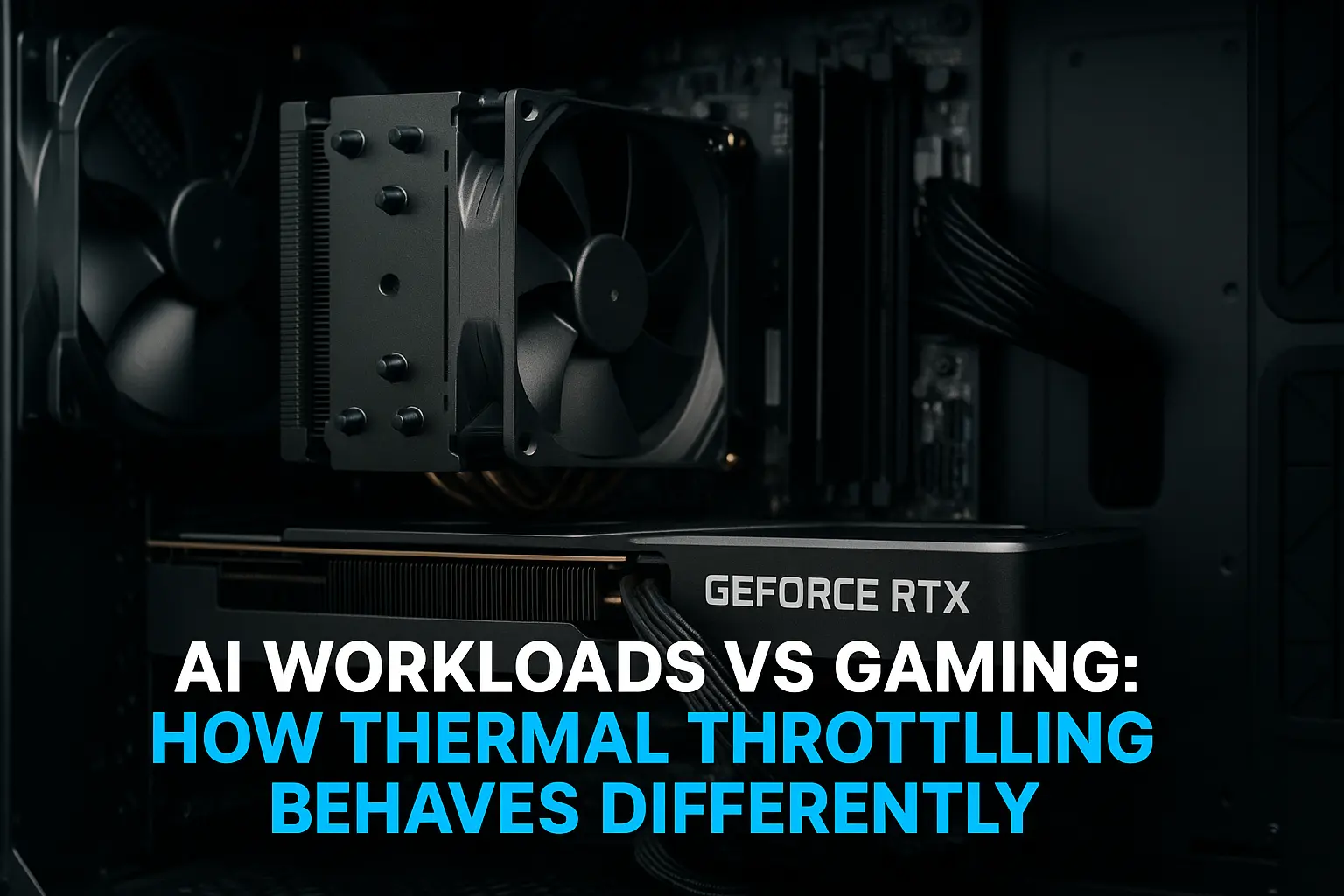
CPUs automatically reduce clock speeds above 90°C to prevent damage. I’ve fixed “bottlenecks” that disappeared after replacing thermal paste and adding case fans. The hardware was fine—cooling was the problem.
Insufficient PSU wattage creates voltage instability preventing CPUs from maintaining boost clocks. Power delivery issues look like processor weakness but aren’t hardware limitations.
Background Software
RGB control software, antivirus scans, Discord, Chrome with 47 tabs—all steal CPU cycles from gaming. Windows Update downloading mid-session? That’s resources stolen from your game. Sometimes the cpu is bottlenecking because software is hogging resources, not because hardware is inadequate.
Poor Game Optimization
Cities: Skylines 2 melted CPUs at launch. Star Citizen runs like garbage on everything. Sometimes the bottleneck is the game, not your hardware. Simulation-heavy games and massive strategy titles hammer CPUs regardless of GPU power.
How to Spot CPU Bottlenecks (The Warning Signs)
Identifying whether your cpu is bottlenecking performance isn’t complicated if you know what to measure.
Usage Percentage Analysis
Run MSI Afterburner or Task Manager during gameplay. CPU constantly at 90-100% while GPU cruises at 50-70%? Found your bottleneck. The component hitting max usage first is your limiting factor.
Catch: single-core usage matters more than overall CPU percentage. An 8-core CPU might show 50% total while two cores max out. Game engines that can’t use more than 4-6 cores make “unused” cores irrelevant.
Frame Rate Inconsistencies
Smooth 120fps randomly dropping to 80fps for no reason? Classic CPU bottleneck behavior. Your processor can’t maintain consistent frame delivery. The “1% low” frame rate matters more than averages—CPU bottlenecks crush your lows while barely affecting averages.
The Resolution Test
Lower resolution from 1440p to 1080p. Frame rate barely changes? CPU bottleneck confirmed. Frame rate jumps significantly? GPU was the limit.
This works because resolution barely affects CPU load but dramatically impacts GPU workload. If reducing GPU work doesn’t improve performance, CPU is the problem.
Benchmark Comparisons
Search YouTube for benchmarks with your GPU but better CPUs. If they’re getting 30-40% higher frame rates in the same games, you’ve identified your limitation. Compare real-world performance against online results to spot bottlenecks.
Different Types of CPU Bottlenecks
Understanding which type you’re dealing with determines the right fix for your cpu bottleneck situation.
Core Count Limitations
Modern games use 6-8 cores effectively. Running a 4-core CPU without hyperthreading leaves performance on the table. Background tasks compete with game threads for limited core availability.
Twist: more cores don’t automatically mean better gaming. A 6-core CPU with high clocks and strong IPC often beats 8-core chips with weaker single-thread performance.
Clock Speed and IPC Problems
Low boost frequencies can’t deliver frames fast enough for high-end GPUs. If your CPU maxes at 3.5GHz while modern processors hit 5.0GHz+, you’re falling behind in single-threaded workloads.
IPC improvements between generations are massive. A 4.0GHz current-gen processor crushes a 4.5GHz chip from five years ago despite lower clocks.
Cache and Memory Bottlenecks
Small L3 cache forces constant slow RAM fetching. This is why AMD’s X3D processors with triple the cache dominate gaming—frequently accessed data stays close to processing cores.
Slow RAM compounds cache problems. DDR4-2400 versus DDR4-3600 can mean 10-15% frame rate differences in CPU-limited scenarios. Memory speed directly impacts how quickly your CPU accesses needed data.
Thermal and Power Issues
Overheating CPUs throttle automatically, creating performance drops that look like hardware inadequacy but are cooling failures. A processor rated 5.2GHz that throttles to 4.0GHz loses massive performance.
Degrading PSU power creates voltage instability preventing boost clock maintenance. High-core-count processors pulling 200W+ suffer most from inadequate power delivery.
How CPU Bottlenecks Destroy Gaming Performance
Understanding how cpu bottleneck situations actually impact gaming makes this knowledge actionable.
Frame Rate and Consistency Problems
CPU bottlenecks reduce average fps, but more importantly murder frame time consistency. You might average 100fps, but when your CPU can’t keep up, frame times spike from 10ms to 30ms randomly, creating visible stuttering.
Competitive gamers feel this hardest. Needing consistent 240fps minimums for 240Hz monitors means any CPU limitation equals dropped frames at critical moments.
GPU Underutilization
Your RTX 4080 can deliver 200fps, but if your CPU only prepares 120 frames per second, that’s your limit. GPU usage sits at 60% because the CPU can’t feed it work fast enough. You paid for performance you’re not getting.
Resolution Dependency
At 1080p with powerful GPUs, you’re almost certainly CPU-bottlenecked. Graphics cards render frames so quickly that CPU preparation becomes limiting. At 1440p, the bottleneck shifts to GPU as rendering workload increases.
This is why 1080p competitive gamers need stronger CPUs than 4K single-player gamers. Lower resolutions reduce GPU workload but don’t affect CPU demands.
Real Hardware Examples
i5-9400F paired with RTX 3080 gets crushed in CPU-intensive games. At 1080p in GTA V, you’re looking at 80-90fps when the GPU is capable of 180fps with a better CPU. Upgrading to i7-12700K suddenly unleashes 140-150fps—same GPU, massively better results.
Ryzen 5 3600 with RX 7800 XT represents decent balance for 1440p gaming. The CPU has enough power to avoid severe bottlenecks without being overkill for GPU capabilities.
Ryzen 5500 with RTX 4070 shows moderate graphics card bottleneck cpu around 12-15% in CPU-heavy titles. Not deal-breaking, but you’re leaving performance on the table.
Step-by-Step Guide to Identifying Your Bottleneck
Stop guessing and start measuring with these diagnostic steps for cpu and gpu bottleneck checker analysis.
Monitor Real-Time Usage
Install MSI Afterburner with on-screen display showing CPU usage per core, GPU usage, frame rate, and frame times. Play normal games and watch the numbers.
CPU bottleneck indicators:
- CPU usage at 95-100% consistently
- GPU usage below 85-90%
- Frame times inconsistent despite stable settings
- Individual CPU cores maxed while others idle
GPU bottleneck indicators (normal):
- GPU usage at 95-100%
- CPU usage varying but not maxed
- Frame rates scale with graphics settings
- Consistent frame times
The Resolution Diagnostic
Set games to 1080p low settings and note frame rate. Switch to 4K ultra settings. Frame rate barely changes? CPU-limited confirmed. GPU workload increase didn’t affect performance because CPU was already maxed.
Frame rate tanks at higher resolution? Your CPU is fine, GPU is the appropriate bottleneck.
Use Bottleneck Calculators
Visit a cpu bottleneck calculator tool and input your exact CPU and GPU models. The calculator estimates bottleneck percentage based on known performance characteristics of your specific hardware combination.
Remember: cpu gpu bottleneck calculator tools provide estimates, not gospel. They give ballpark figures, but real-world testing matters more. Use calculator results as starting points, not final answers.
Run Benchmarks
3DMark Time Spy separates CPU and GPU scores for clear cpu and gpu bottleneck checker analysis. Compare your CPU score to others with the same processor. Significantly lower scores indicate thermal issues or configuration problems.
Game-specific benchmarks matter most. Run built-in benchmarks in your games, then search YouTube for videos with better CPUs and your same GPU. The frame rate delta shows bottleneck severity.
How to Fix CPU Bottlenecks
Diagnosing the cpu bottleneck is step one. Actually fixing it requires understanding quick fixes versus real solutions.
Immediate Free Fixes
Close every unnecessary program before gaming. Discord, Chrome, Spotify, RGB software—shut it down. Even if individual programs use 2-3% CPU, they add up quickly.
Lower CPU-intensive settings like shadows, draw distance, NPC density, physics quality, and particle effects. These hammer CPUs harder than GPUs. Reducing these can unlock 10-20fps without touching resolution or texture quality.
Enable XMP or EXPO in BIOS for automatic RAM overclocking to rated speeds. RAM speed directly impacts CPU performance, and most systems ship with memory running slower than rated.
Disable unnecessary startup programs through Task Manager. That update helper for software you used once three years ago is killing performance for zero benefit.
Windows Optimization
Set power plan to “High Performance” or “Ultimate Performance” in Windows settings. Balanced mode throttles CPU clocks to save power, hurting gaming performance.
Enable Game Mode in Windows to prioritize gaming processes. Windows allocates more resources to your game and reduces background task interference.
Update chipset drivers from your motherboard manufacturer. These optimize how Windows communicates with your CPU, improving performance and stability.
Hardware Upgrades
Upgrade your CPU to a higher-tier model compatible with your motherboard. This is the real solution for severe cpu bottleneck problems. A Ryzen 5 5600 to Ryzen 7 5800X3D upgrade on the same motherboard can double CPU-limited frame rates.
Improve cooling with better case fans, tower coolers, or AIO liquid coolers. If thermal throttling is your problem, better cooling is cheaper than a new CPU.
Upgrade motherboard and CPU together if you’re on an old platform. Sometimes you can’t drop in a better CPU—the socket is obsolete and you need a platform refresh.
Ensure adequate PSU wattage with headroom for full-load operation. Borderline power supplies hurt CPU boost behavior. Quality PSU upgrades can improve performance without touching the CPU.
Preventing CPU Bottlenecks in Future Builds
Learning from graphics card bottleneck cpu mistakes means building smarter systems next time.
Smart Component Matching
Don’t pair a $700 GPU with a $150 CPU. You’re creating a bottleneck scenario that wastes GPU performance. Match component tiers: budget with budget, mid-range with mid-range, high-end with high-end.
For 1080p competitive gaming, prioritize CPU over GPU. A Ryzen 7 7800X3D with RTX 4070 outperforms Ryzen 5 5600 with RTX 4080 in frame time consistency.
For 4K gaming, prioritize GPU over CPU. Rendering workload at 4K shifts bottlenecks toward graphics processing, making GPU investment more valuable.
Budget Allocation Strategy
Gaming-focused builds: 50-60% GPU, 20-25% CPU, 15-20% supporting components
Productivity and gaming: 40-45% GPU, 30-35% CPU, 20-25% supporting components
Streaming and content creation: 35-40% GPU, 35-40% CPU, 20-25% supporting components
Choose Future-Proof CPUs
Look for CPUs with strong IPC and high core counts. Games increasingly use 6-8 cores effectively. A 6-core CPU with excellent IPC is minimum for gaming builds today.
Prioritize current-generation platforms with upgrade paths. Buying dead sockets saves money today but costs more long-term when you can’t drop in better CPUs without replacing motherboards.
Check single-thread performance benchmarks, not just core counts. A 12-core CPU with weak single-thread performance loses to 8-core chips with strong IPC in gaming.
Understanding Bottleneck Calculator Results
Cpu bottleneck calculator tools provide useful estimates, but interpreting results correctly matters more than raw numbers.
What Percentages Mean
0-5% bottleneck: Excellent balance. You’re getting maximum value from both components.
6-10% bottleneck: Slight mismatch but acceptable. Cost of upgrading probably isn’t justified unless chasing maximum frame rates.
11-20% bottleneck: Noticeable limitation in CPU-heavy scenarios. Upgrading provides meaningful performance improvements worth considering.
20%+ bottleneck: Significant performance limitation. System is severely unbalanced—upgrade recommended for serious gains.
Why Calculators Aren’t Perfect
Cpu gpu bottleneck calculator tools use average benchmark data that might not match your specific games or workloads. They can’t account for cooling, game optimizations, or exact configurations.
Resolution matters dramatically but calculators often use generic assumptions. Your actual bottleneck shifts between 1080p and 4K gaming, but calculators give single percentage figures.
These are starting points for research, not definitive answers. Use them to identify potential issues, then verify with actual testing in your games.
Resolution Impact
Higher resolutions reduce cpu bottleneck percentages because GPU workload increases while CPU demands stay constant. A 15% CPU bottleneck at 1080p might become 5% at 1440p and disappear at 4K.
Resolution context matters when discussing bottlenecks. “RTX 4090 is bottlenecked by Ryzen 5 7600” needs qualification—yes at 1080p competitive, no at 4K ultra.
Frequently Asked Questions About CPU Bottlenecks
How do you fix CPU bottlenecking?
Short-term: close background apps, lower CPU-intensive settings (shadows, draw distance), enable XMP for RAM, optimize Windows power plans. Long-term: upgrade to better CPU, improve cooling, or build more balanced system using cpu and gpu bottleneck checker tools before buying.
Is a 15% CPU bottleneck bad?
A 15% cpu bottleneck is noticeable in CPU-heavy scenarios but not catastrophic. You’re leaving performance on the table, but whether it’s “bad” depends on frame rate targets and budget. For casual gaming it’s acceptable, for competitive high-refresh gaming consider upgrading.
What is bottleneck CPU vs GPU?
CPU bottleneck means your processor limits system performance while GPU sits underutilized. GPU bottleneck means graphics card maxes out while CPU has headroom. GPU bottlenecks are normal and preferred for gaming—they mean you’re maximizing your most expensive component.
Is a CPU bottleneck bad for gaming?
Yes, cpu bottleneck situations hurt gaming by reducing frame rates, causing stuttering, and preventing your GPU from reaching potential. However, mild bottlenecks under 10% have minimal real-world impact and aren’t worth obsessing over.
Can a CPU be too powerful for a GPU?
Not really. Having stronger CPU than necessary creates GPU bottleneck scenarios, which is normal and expected in gaming. You might be overspending on CPU performance you don’t need, but it won’t hurt performance like graphics card bottleneck cpu situations do.
What CPU is best for gaming?
For 2025: AMD Ryzen 7 7800X3D offers best pure gaming performance, Intel Core i7-13700K provides excellent all-around value, Ryzen 5 7600 delivers strong budget performance. Choose based on resolution, refresh rate targets, and budget using cpu bottleneck calculator for verification.
How to check for bottlenecks in PC?
Monitor CPU and GPU usage during gaming with MSI Afterburner or HWiNFO64. The component at 95-100% usage is your bottleneck. Compare your performance to online benchmarks with same hardware. Use cpu and gpu bottleneck checker calculators for estimates, then verify with real testing.
Does a better CPU increase FPS?
Yes, but only if you’re bottlenecked by cpu. Upgrading from weak to strong CPU can double frame rates in CPU-limited scenarios. If you’re GPU-bottlenecked, CPU upgrades provide minimal FPS improvements. Diagnose your bottleneck before upgrading to avoid wasting money.
Stop Leaving Performance on the Table
CPU bottlenecks aren’t mysterious—they’re fixable problems with clear causes and solutions. The key is understanding what’s limiting your system instead of blindly spending money on upgrades you don’t need.
Focus on fixing severe bottlenecks that impact your experience. A 5% cpu bottleneck from a calculator isn’t ruining gaming chasing perfection ruins budgets. Upgrade when real-world performance falls short of needs, not when online tools show numbers you dislike.
Try free fixes first: close background apps, optimize settings, enable XMP, update drivers. Many “bottlenecks” disappear with basic maintenance.
Ready to see where your system stands? Use our PC Bottleneck Calculator to analyze your specific CPU and GPU combination, understand performance limitations, and make informed upgrade decisions based on data instead of guesswork.