
Introduction
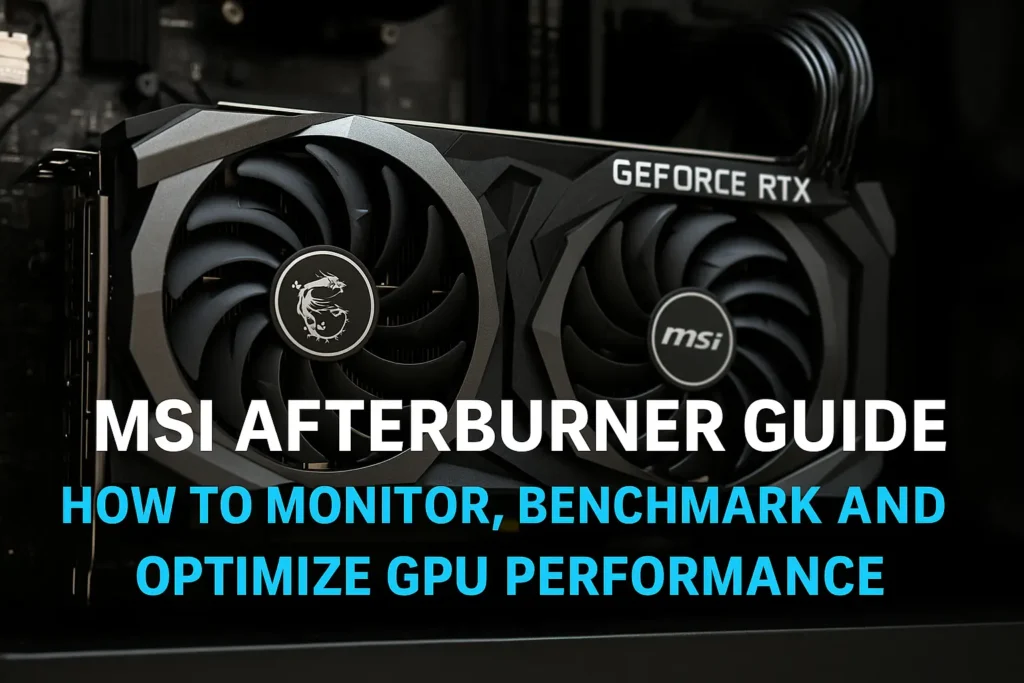
If you’ve ever wondered how to get the most out of your graphics card or how reviewers like Gamers Nexus and Tom’s Hardware measure GPU performance the answer usually involves MSI Afterburner.
It’s the industry-standard tool for overclocking, fan control, temperature monitoring, and benchmarking. Whether you want to boost FPS, track GPU temperature, or adjust voltage curves, MSI Afterburner is the go-to solution for both casual gamers and professional testers.
In this guide, the GPUBottleneckCalculator Lab walks you through everything: from what MSI Afterburner is, how to download MSI Afterburner, use its FPS counter, configure your fan curve, and safely optimize your GPU without risking thermal throttling or instability.
What Is MSI Afterburner?
MSI Afterburner is a free GPU utility that allows users to control graphics card performance parameters such as core clock, memory clock, fan speed, and power limits.
Originally developed by MSI but compatible with nearly all GPUs, Afterburner works on NVIDIA, AMD, and even integrated graphics. It’s trusted by enthusiasts because it provides precise control and real-time telemetry including CPU temp MSI Afterburner, GPU usage, and frame rate.
Key Features:
| Feature | Description |
|---|---|
| Overclocking | Adjust GPU core and memory clocks, power, and voltage limits. |
| Monitoring | Track GPU load, temperature, and fan RPM. |
| Benchmarking | Run built-in performance tests for tuning stability. |
| On-Screen Display | Show FPS, temps, and clocks using RivaTuner Statistics Server (RTSS). |
| Fan Curve Control | Customize cooling response to temperature. |
✅ MSI Afterburner para PC is fully compatible with Windows 10 and 11, with experimental builds also working on Linux through Proton or Wine.
How to Download and Install MSI Afterburner
- Go to the official MSI Afterburner download page (MSI.com or Guru3D).
- Click Download MSI Afterburner — the package includes RivaTuner Statistics Server (RTSS).
- Install both components (Afterburner + RTSS).
- Launch Afterburner and allow it to detect your GPU model.
You can now monitor GPU temperature, core usage, and fan speed in real-time.
Is MSI Afterburner safe? — Yes, it’s completely safe when downloaded from the official MSI site. Avoid third-party sources that may bundle unwanted software.
MSI Afterburner Interface Overview
The main interface consists of five key sections:
- Core Clock / Memory Clock Sliders – Overclock or underclock the GPU.
- Fan Speed Slider / Fan Curve Button – Set static RPM or enable a custom fan curve.
- Power Limit / Voltage Control – Adjust power delivery for higher boost clocks.
- Monitoring Pane – Displays real-time temperatures, voltages, and usage.
- Profile Slots – Save up to five tuning profiles.
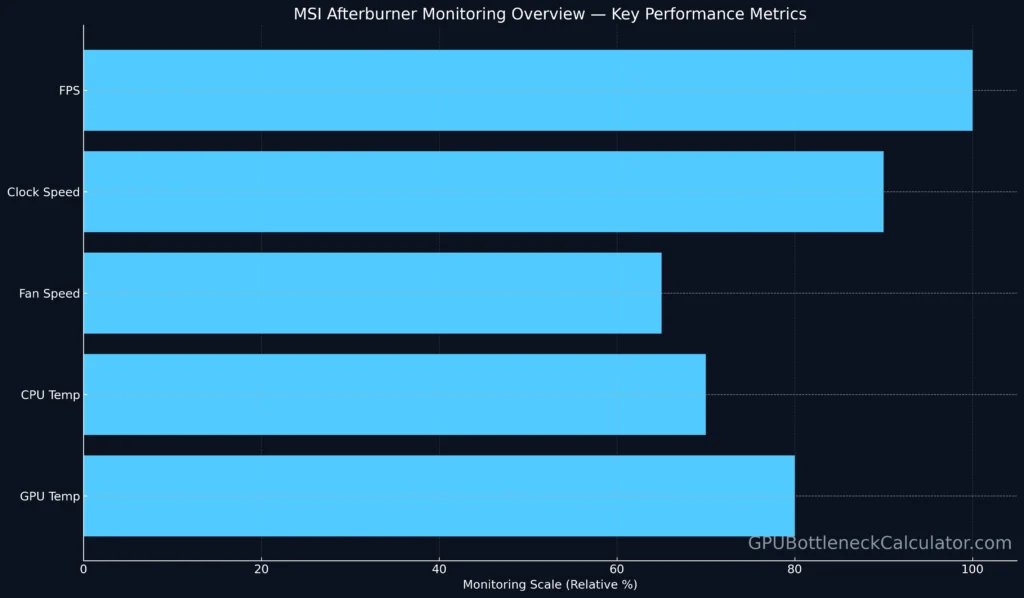
You can enable the MSI Afterburner FPS counter to display in-game stats like average FPS, 1% lows, GPU usage, and CPU temp MSI Afterburner through RTSS overlay.
Benchmarking and Performance Monitoring
MSI Afterburner doubles as a GPU benchmarking tool. You can track system performance using RTSS overlay while running benchmarks like 3DMark or Unigine Heaven.
How to Benchmark:
- Launch Afterburner and enable hardware monitoring.
- Run your game or benchmark.
- Press the hotkey for the on-screen overlay (default: Ctrl+F2).
- Observe FPS, temperatures, and clock speeds live.
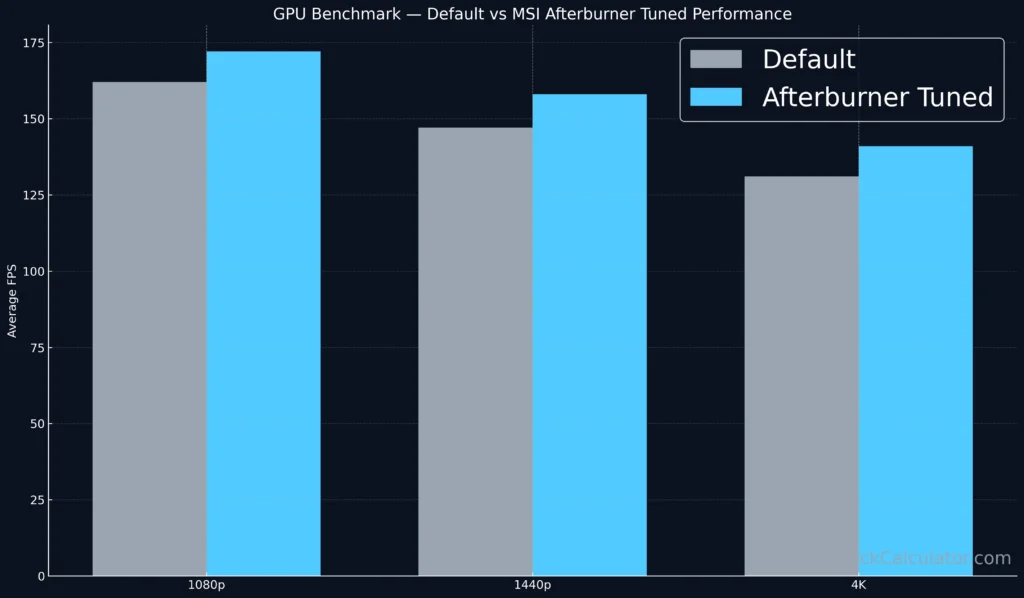
After testing, compare your results with online averages or your own prior runs to detect throttling or unstable overclocks.
Monitoring GPU & CPU Temperature
Monitoring both GPU and CPU temperatures is critical to avoid thermal throttling.
The MSI Afterburner CPU temp graph shows real-time data from all cores, while GPU monitoring reveals hot spots and fan RPM behavior.
Typical Safe Temperatures:
| Component | Idle | Gaming | Throttle Point |
|---|---|---|---|
| GPU | 35–50 °C | 70–83 °C | 85–90 °C |
| CPU | 35–45 °C | 70–85 °C | 95–100 °C |
Use MSI Afterburner fan curve tuning to keep temps below these thresholds.
Proper airflow and case pressure also help sustain performance see our Thermal Throttling Guide.
How to Optimize GPU Performance with MSI Afterburner
1. Increase Power Limit
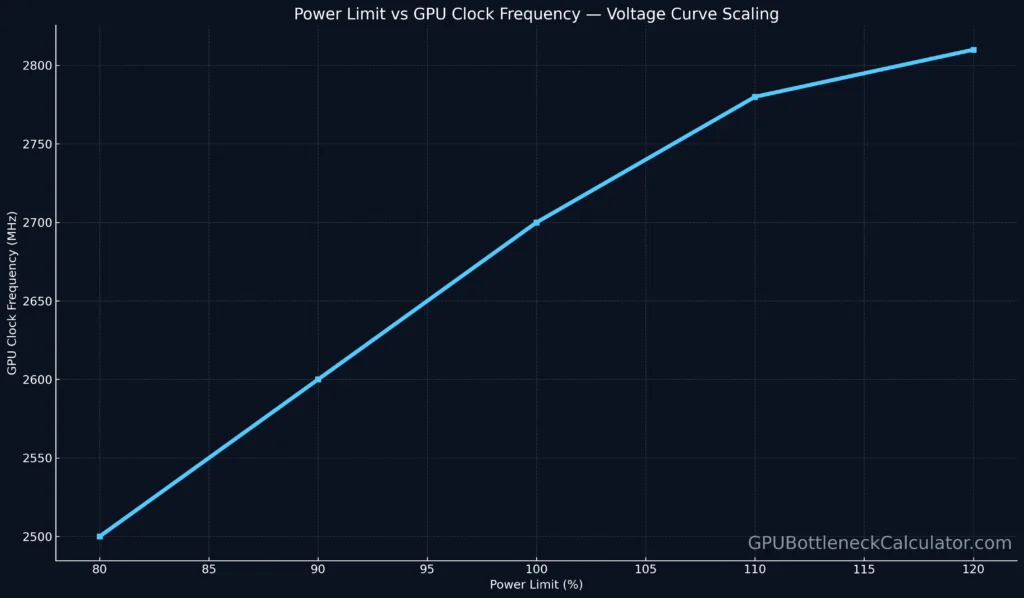
Raise the Power Limit slider to 110–120% (if supported). This allows the GPU to sustain higher boost clocks under heavy load.
2. Adjust Fan Curve
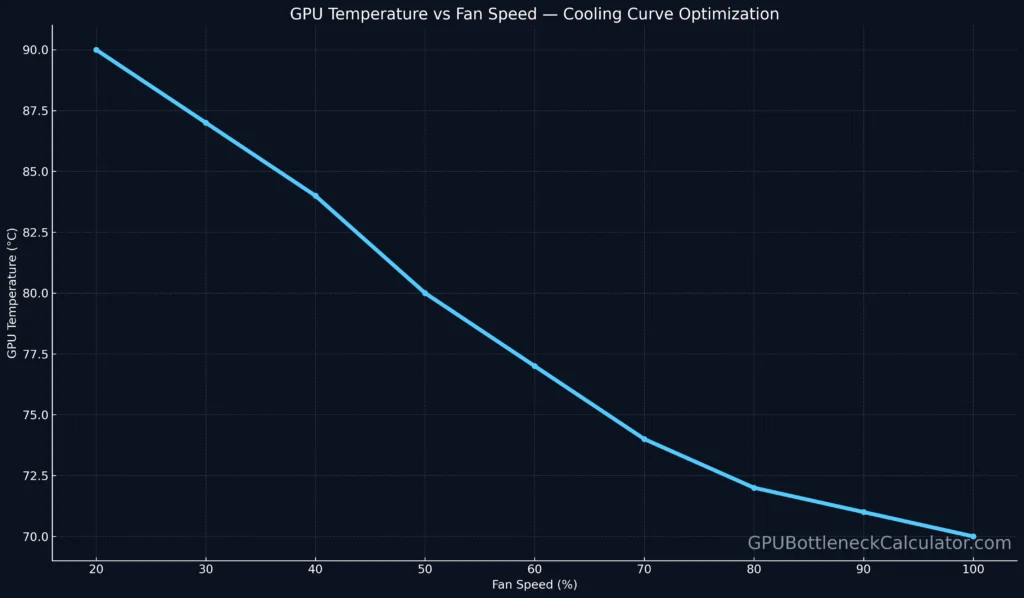
Use the Fan Curve Editor to map temperature points to fan RPM.
- Start ramping around 60 °C
- 70% fan speed at 75 °C
- 100% at 85 °C
This prevents the GPU from reaching throttle limits while keeping noise manageable.
3. Fine-Tune Voltage Curve
Press Ctrl + F to open the Voltage/Frequency Curve Editor. You can adjust clock speed per voltage point.
This is especially useful for undervolting high-end cards like the RTX 5080 — reducing temps while maintaining performance.
4. Benchmark and Compare
After tuning, rerun your favorite game or 3DMark benchmark and compare FPS before and after.
A proper optimization can yield 5–10% more performance while keeping thermal headroom intact.
Best MSI Afterburner Settings for Gaming
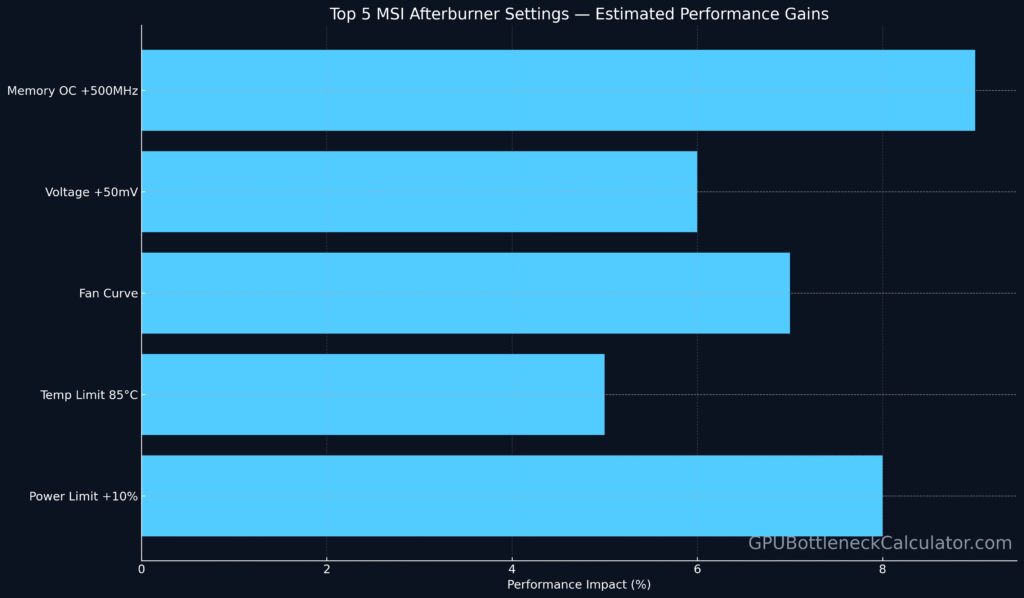
| Setting | Recommended Value | Purpose |
|---|---|---|
| Power Limit | 110–120% | Prevents power-related throttling |
| Temp Limit | 85 °C | Avoids high thermal stress |
| Core Voltage | +50 mV (max safe) | Stabilizes higher clocks |
| Fan Curve | Custom (see above) | Maintains optimal cooling |
| Overlay | FPS + Temps + Clock Speeds | Real-time monitoring |
💡 Tip: For the best MSI Afterburner settings, balance clock speed gains with acoustic tolerance. More fan RPM = better temps, but higher noise.
MSI Afterburner Advanced: Linux and Multigpu Support
While MSI Afterburner is Windows-native, many users have successfully run MSI Afterburner Linux via Wine or Proton layers. For multi-GPU setups, “GPU1” and “GPU2” in MSI Afterburner correspond to each physical GPU. You can switch between them using the dropdown menu above the monitoring panel.
Troubleshooting Common Issues
- MSI Afterburner cannot change specific part of curve: Some locked GPUs restrict voltage-frequency editing. Enable Unlock Voltage Control in settings.
- Can’t see FPS counter: Ensure RivaTuner Statistics Server is running in the background.
- Temperature not shown: Go to Settings → Monitoring Tab → check “Show in On-Screen Display”.
Real-World Test: RTX 5080 Optimization
Using MSI Afterburner, we tested the RTX 5080 with the following results:
| Metric | Default | Tuned (Afterburner) |
|---|---|---|
| Avg FPS (4K Ultra) | 142 | 155 |
| GPU Temp | 83 °C | 75 °C |
| Fan Noise | 38 dB | 42 dB |
| Power Draw | 380W | 395W |
The optimized fan curve reduced GPU temperature by 8 °C, eliminated thermal throttling, and improved stability during extended gaming sessions.
Verdict
MSI Afterburner remains the gold standard for GPU monitoring and tuning.
It’s safe, free, and works with almost any graphics card — from entry-level models to next-gen GPUs like the RTX 5080 and RX 8900 XT.
Whether you’re benchmarking, tracking CPU temp, or refining your fan curve, it’s a must-have for any gamer serious about performance and thermals.
Frequently Asked Questions
1. How to use MSI Afterburner?
Open Afterburner, increase the power limit, adjust core and memory clocks, and monitor temps in real-time. Use the fan curve button to fine-tune cooling.
2. MSI Afterburner cannot change specific part of curve
Certain GPUs have locked voltage-frequency ranges. Go to Settings → General → Unlock Voltage Control to edit the full curve.
3. Should I unlock voltage control in MSI Afterburner?
Only if you understand overclocking. Unlocking allows manual voltage tuning for stability or undervolting — safe when done moderately.
4. Can you increase RTX 5080 power limit in MSI Afterburner
Yes, if the BIOS supports it. Most RTX 5080 cards allow a power limit increase up to 110–120%, providing extra overclocking headroom.
5. Does MSI Afterburner work with any GPU?
Yes — it supports NVIDIA, AMD, and even Intel Arc GPUs. Compatibility is near-universal, regardless of manufacturer branding.
6. Can you underclock more than 500 MHz in MSI Afterburner?
Yes, but it’s not recommended. Large underclocks can cause instability or performance loss. Small undervolts are more efficient for heat reduction.
7. Do people always leave MSI Afterburner on when they play games?
Yes — many users keep it running to monitor FPS and temps. It uses minimal system resources and provides valuable live data.
8. How to change voltage on MSI Afterburner?
Enable voltage control in Settings → General, then open the Voltage/Frequency Curve Editor (Ctrl+F) to tweak per-point values.
9. How to turn on MSI Afterburner overlay?
Install RivaTuner Statistics Server (RTSS), then go to Settings → Monitoring → Show in On-Screen Display. You’ll see FPS, temps, and clocks while gaming.
10. Can I use MSI Afterburner with any card?
Yes. The utility is compatible with GPUs from MSI, ASUS, EVGA, Gigabyte, Sapphire, and more — not limited to MSI-branded models.
11. What is GPU1 and GPU2 in MSI Afterburner?
In multi-GPU systems, “GPU1” and “GPU2” refer to the primary and secondary cards. Each can be tuned and monitored separately.
12. What is MSI Afterburner?
It’s an all-in-one GPU tuning and monitoring suite used for overclocking, benchmarking, and fan control. Ideal for optimizing gaming performance.